Recent Posts

Showing posts with label Photoshop. Show all posts

Sunday, January 1, 2012

This time we will know and master the Custom Shape Tool. On the program Adobe Photoshop you are spoiled by the presence of a template - a template that can be directly we use, one of which is the custom shape tool ...


Custom Shape Tool as well as AutoShape in Microsoft World, but unfortunately given template selection is not as much on the Microsoft World.

Here's how:

Location of Custom Shape Tool
to choose the left-click
After that go into the properties of the custom shape tool located under the main menu

Left-click to bring up the template so that the arrows show the option

To set the color from the Custom Shape Tool through the properties you can set up the color


- After pass up all the settings above then just use to the canvas by holding the left click
For example I use a tone image


create an image of the strains muzik tones


Examples of tone Shape Tool
 
You can be your own creation by imagination, and good luck ...


Know the Custom Shape Tool

Tutorial make a drawing with the Pen Tool is a basic tutorial that must be mastered. Drawing is a fun hobby, this time we will draw using the pen tool function ...

this is very useful for designing


Here's how:
On Tool Box seek
 
pen tool icon

The following Examples make up with the Pen Tool
Make up the triangle with the pen tool

Click Three Points to form a triangle


last

It will automatically form a triangle

Create Picture of Fish
Now it's time to fish, live dikreasikan trick only:
Here is a picture of homemade fish writer, you can create a smoother and better, this is only as guidelines or examples

I'm using 23 point
Just follow the point 1 to 23 and then back to point 1 again


and ...

The result

Piranha fish in the well screen

tips:
Hold down the [Shift] to make a straight line


Use the Ellipse tool to add eye
The result:

... Wow, Fish Lohan! Fried or baked good together ...!!!

Creating Images With the Pen Tool

Tutorial to make gradient background is an interesting tutorial. In this tutorial we will learn to create a gradient background, but homemade ...
Without the length and width and not use old (GPL) let's make a gradient!
1. Run the program Photoshop.How: Start -> All Programs -> Adobe Photoshop


2. Create a new WorksheetHow: press [Ctrl] + [N]You can make your own arrangements, butHere I set it like this:Name = gradientSazes preset = 800 x 600Width = 800Height = 600Resolution = 72 pixels / inchMode = RGB ColorContents = Transparent (* recommended)Press [ok]
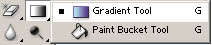
3. After that click on the Gradient Tool with the image icon on the left tool box
Gradients Tool
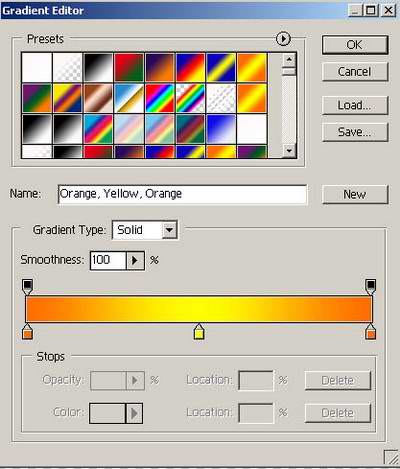
4. On the upper screen there are the properties of the gradient


Left click on the section that I gave lingkakaran dialog box that appearsGradient Editor
This is the normal setting on my computer


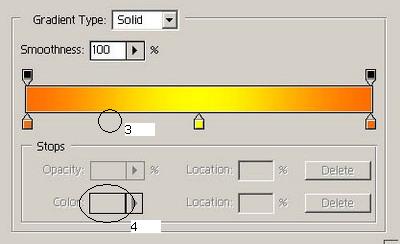
5. Now is the time to edit the gradient is desired, as an example I will create a gradient"Red - black - red - black - red"Here's how:Change Name = red - black - red - black - redGradients Type = SolidSmoothness = 100%
Click the circle with no. AThen the circle and select the color red no.2 [OK]
Further

Just like the previous stepbut this time at no. 4 black color you select [OK]
Further

Yup still the same but this time at no. 6 select the color red
Further

Equally, no color change. 8 to be black
Further

Equally, no color change. 10 into the red
The result:


After that, click the New button on the Gradient Editor dialog isAnd So ........You can develop yourself according to your creativity

A little extra


Try with gradian mode that you createdThere are 5 kind of gradient mode:

a. Linear GradientGradient in the direction of the straight lineOn Worksheet hold left click then brush from left to right, the result:


b. Radial GradientsGradient as if emerging from the center of a circlethe result:


c. Angle GradientGradient with a certain angle but still centered on the coreThe result:

 
d. Reflected GradientJust as linear but with a reverse effect

e. Diamond GradientGradient with effect rhombus / diamondThe result:

Purpose:By mastering the gradient technique will make your design more attractive and real
GOOD USEFUL

Tutorial Creating a Gradient Background

Call Me..!!